Moderation
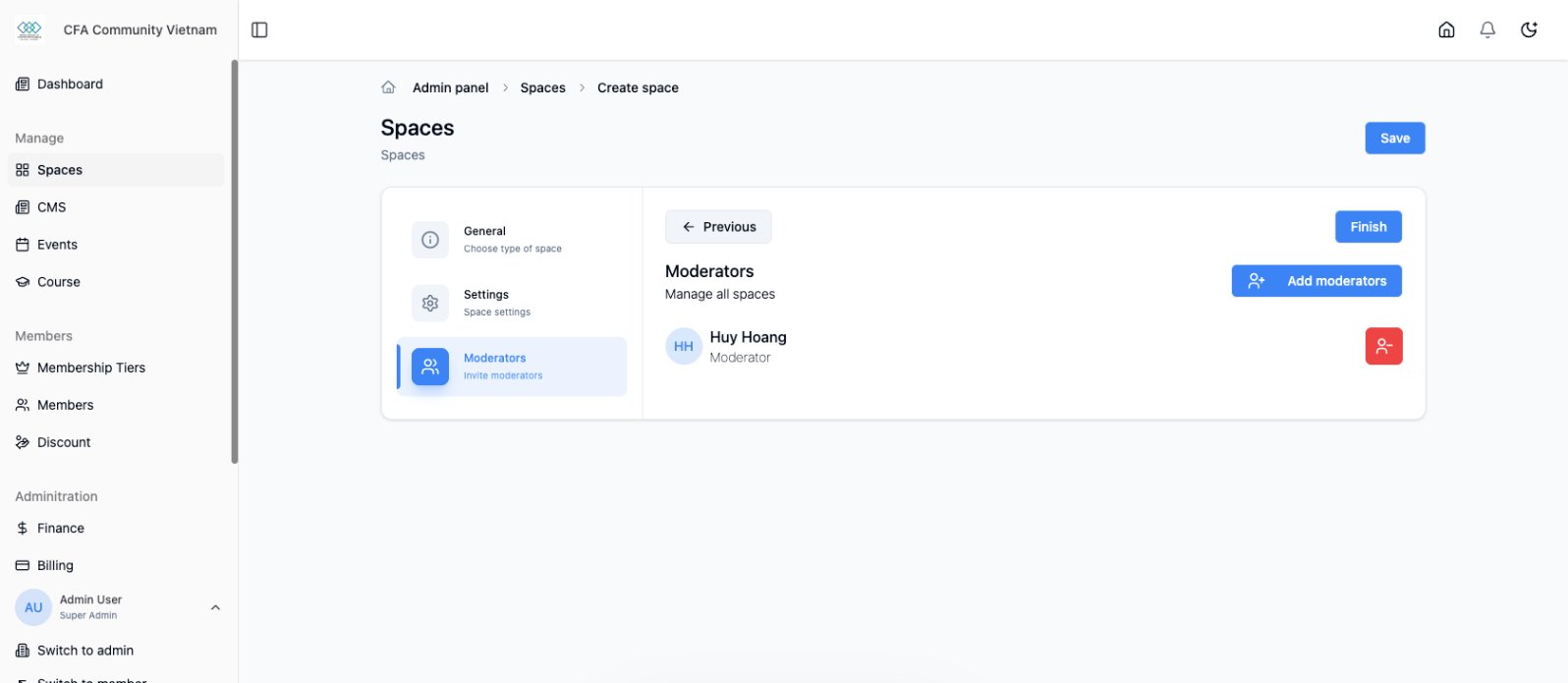
Keep your community safe and constructive with effective moderation tools.
Moderation Overview
Why Moderate?
- Maintain community standards
- Remove harmful content
- Encourage positive interactions
- Protect members
Who Can Moderate?
| Role | Moderation Powers |
|---|---|
| Admin | Full moderation + settings |
| Moderator | Edit, hide, delete content; manage members in assigned spaces |
| Editor | Edit own content only |
Assigning Moderators
Making Someone a Moderator
- Go to Members
- Find the member
- Click Edit
- Change role to Moderator
- Assign specific spaces (optional)
- Click Save
Space-Specific Moderators
Limit moderator access to specific spaces:
- Edit the moderator's profile
- Under Moderation Scope
- Select specific spaces
- They can only moderate those spaces
Content Moderation
Reviewing Posts
- Go to the space
- Find the post
- Click ... menu
- Options:
- Edit - Modify content
- Hide - Remove from view
- Delete - Permanently remove
- Pin - Keep at top
- Feature - Highlight
Hiding vs Deleting
| Action | Effect |
|---|---|
| Hide | Removed from view, can be restored |
| Delete | Permanently removed, cannot be restored |
Recommendation: Hide first, delete only if necessary.
Comment Moderation
For individual comments:
- Find the comment
- Click ... menu
- Options:
- Edit - Fix issues
- Hide - Remove from view
- Delete - Permanently remove
Member Moderation
Warning Members
Before banning, consider warnings:
- Go to member profile
- Click Send Message
- Explain the issue
- Document the warning
Suspending Members
Temporarily restrict access:
- Go to Members
- Find the member
- Click ... menu
- Select Suspend
- Set duration
- Add reason (internal)
- Confirm
Banning Members
Permanently remove someone:
- Go to Members
- Find the member
- Click ... menu
- Select Ban
- Add reason (internal)
- Choose to notify them
- Confirm
Unbanning
To restore a banned member:
- Go to Members > Banned
- Find the member
- Click Unban
Moderation Queue
What is the Queue?
Central place to review flagged content:
- Member-reported content
- Auto-flagged content
- Pending approvals
Accessing the Queue
- Go to Moderation in sidebar
- View pending items
- Take action on each
Processing Items
For each queued item:
- Approve - Publish/allow
- Reject - Hide/remove
- Escalate - Flag for admin review
Reporting System
How Members Report
Members can report:
- Click ... on any post/comment
- Select Report
- Choose reason
- Submit
Report Reasons
| Reason | Description |
|---|---|
| Spam | Commercial/promotional |
| Harassment | Targeting individuals |
| Inappropriate | Not suitable content |
| Misinformation | False information |
| Other | Custom reason |
Handling Reports
- Review in moderation queue
- Check the content
- Check reporter's history
- Take appropriate action
- Optionally notify reporter
Auto-Moderation
Content Filters
Automatic content screening:
- Go to Settings > Moderation
- Enable content filters
- Configure sensitivity
- Set action (flag, hide, or block)
What Gets Filtered
- Profanity and slurs
- Spam patterns
- External links (optional)
- Suspicious content
Filter Actions
| Action | Effect |
|---|---|
| Flag | Post publishes, added to queue |
| Hide | Post hidden, pending review |
| Block | Post rejected, user notified |
Community Guidelines
Creating Guidelines
Write clear community rules:
- Go to Settings > Community Guidelines
- Write your guidelines
- Include:
- Expected behavior
- Prohibited content
- Consequences
- Publish
Displaying Guidelines
- Link in registration flow
- Pin in welcome space
- Reference in moderation messages
Example Guidelines Topics
- Respectful communication
- No spam or self-promotion
- No harassment or hate speech
- Original content expectations
- Privacy and confidentiality
Moderation Best Practices
Be Consistent
- Apply rules equally
- Document decisions
- Create internal guidelines
Be Transparent
- Explain actions when possible
- Public community guidelines
- Clear appeal process
Be Timely
- Check moderation queue daily
- Respond to urgent issues quickly
- Don't let problems escalate
Common Mistakes
| Mistake | Better Approach |
|---|---|
| No guidelines | Create clear, written rules |
| Inconsistent enforcement | Document and follow process |
| Over-moderating | Allow healthy disagreement |
| Under-moderating | Address issues before they grow |
Escalation Process
When to Escalate
- Legal concerns
- Threats of violence
- Repeated offenders
- Unclear situations
Escalation Path
- Moderator reviews and flags
- Admin reviews escalated items
- Support for legal/safety issues
Related Guides
- Spaces Guide
- Privacy & Permissions
- User Management
Need help? Contact support@uni8.ai