Creating Content
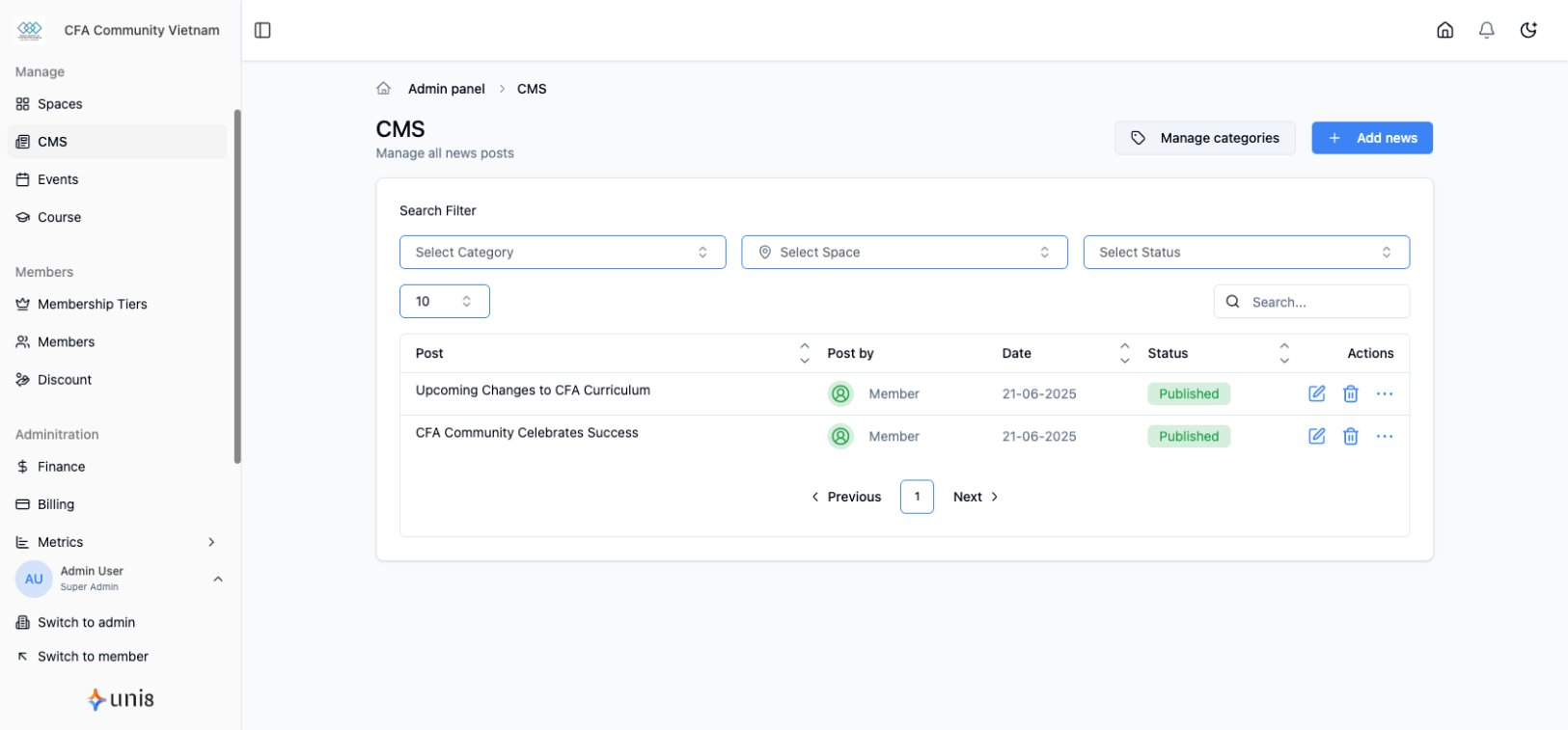
Learn how to create engaging content across different areas in your community.
Content Overview
What is Content?
Content in Uni8 includes:
- News articles and updates (Unite stage - CMS)
- Social posts and discussions (Engage stage - Social space)
- Job listings (Engage stage - Jobs space)
- Directory entries (Engage stage - Directory space)
- Events (Interact stage - Monetization)
- Courses (Interact stage - Monetization)
Content by Stage
| Stage | Content Type | Where to Create |
|---|---|---|
| Unite | News/Blog articles | News section (CMS) |
| Engage | Social posts | Social Space |
| Engage | Job listings | Jobs Space |
| Engage | Directory entries | Directory Space |
| Interact | Events | Events section |
| Interact | Courses | Courses section |
Creating News Articles (Unite Stage)
News articles are CMS content, not space content. They appear in the News section.
Writing an Article
- Go to News or Posts in the admin sidebar
- Click + New Post and select News type
- Enter:
- Title - Compelling headline
- Content - Article body
- Featured Image - Cover image
- Category - Topic category
- Click Publish or Save Draft
Article Editor
The rich text editor supports:
| Feature | How to Use |
|---|---|
| Headings | Use H2, H3 for structure |
| Bold/Italic | Highlight important text |
| Lists | Bullet or numbered lists |
| Links | Add hyperlinks |
| Images | Embed images in content |
| Videos | Embed video players |
| Code | Format code blocks |
| Quotes | Block quotations |
Article Settings
| Setting | Description |
|---|---|
| Visibility | Public, Members, Specific Tiers |
| Comments | Enable/disable comments |
| Author | Who published this |
| Publish Date | When to publish |
| Featured | Show in featured section |
Creating Social Posts (Engage Stage)
Social posts live in Social spaces where members interact.
Starting a Discussion
- Go to your Social Space
- Click + New Post
- Enter:
- Title - Discussion topic (optional)
- Content - Your message
- Click Post
Social Post Features
- Members can reply
- Threaded conversations
- Reactions and likes
- Mentions (@username)
- Polls and surveys
- Media attachments
Creating Job Listings (Engage Stage)
Job listings live in Jobs spaces.
Posting a Job
- Go to your Jobs Space
- Click + New Job
- Fill in:
- Job Title - Position name
- Company - Hiring organization
- Description - Role details
- Requirements - Qualifications
- Location - Office or Remote
- Application Method - How to apply
Creating Directory Entries (Engage Stage)
Directory entries live in Directory spaces.
Adding to Directory
- Go to your Directory Space
- Click + New Entry
- Fill in:
- Name - Person or business name
- Category - Type/classification
- Description - About them
- Contact Info - Email, phone, website
- Image - Photo or logo
Creating Events (Interact Stage)
Events are monetization products, not space content. They have their own dedicated section.
Setting Up an Event
- Go to Events in the admin sidebar
- Click + New Event
- Fill in event details:
- Title - Event name
- Description - What the event is about
- Date & Time - When it happens
- Location - Physical address or "Online"
- Cover Image - Event banner
Event Types
| Type | Description |
|---|---|
| In-Person | Physical location, address required |
| Online | Virtual event, link provided |
| Hybrid | Both in-person and online options |
Event Settings
Configure:
- Registration - Required or open
- Capacity - Maximum attendees
- Tickets - Free or paid options
- Visibility - Who can see the event
See Creating Events for detailed guide.
Creating Courses (Interact Stage)
Courses are monetization products, not space content. They have their own dedicated section.
Course Structure
Courses consist of:
Course
  └── Section 1
        └── Lesson 1.1
        └── Lesson 1.2
  └── Section 2
        └── Lesson 2.1
        └── Quiz
Creating a Course
- Go to Courses in the admin sidebar
- Click + New Course
- Enter:
- Title - Course name
- Description - What students will learn
- Cover Image - Course thumbnail
- Pricing - Free or paid
See Creating Courses for detailed guide.
Content Best Practices
Writing Compelling Titles
- Be specific and clear
- Include keywords naturally
- Create curiosity or value
- Keep under 60 characters
Good: "5 Marketing Strategies That Increased Our Revenue 40%" Avoid: "Marketing Tips"
Using Images
- Use high-quality images
- Optimize file size (compress)
- Add alt text for accessibility
- Maintain consistent aspect ratios
Content Structure
- Start with the main point
- Use headings to break up text
- Keep paragraphs short
- Include bullet points for lists
- End with a call-to-action
SEO Basics
- Include relevant keywords
- Write descriptive meta descriptions
- Use heading hierarchy properly
- Add internal links to related content
Scheduling Content
Schedule for Later
- Create your content
- Click dropdown next to Publish
- Select Schedule
- Choose date and time
- Click Schedule
Managing Scheduled Content
- Go to the content section
- Filter by Scheduled
- View, edit, or publish early
Drafts
Saving Drafts
- Click Save Draft anytime
- Drafts are auto-saved periodically
- Return to continue editing
Finding Drafts
- Go to the content section
- Filter by Drafts
- Click to continue editing
Related Guides
Need help? Contact support@uni8.ai